
Customizing Flipchart Toolbar
Hint: Sometimes, you may need to add or hide objects on the flipchart toolbar at runtime. That’s perfectly fine with this option.
Prerequisites
Section titled “Prerequisites”A flipchart-based activity started
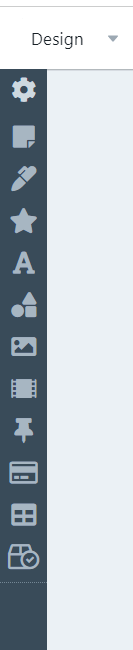
You can find the toolbar section on the left side of the screen. This is the place to start creating objects on the flipchart.
How to configure the toolbar
Section titled “How to configure the toolbar”To start configuring the toolbar, click on the first button.
The “Configure toolbar” window page will open.
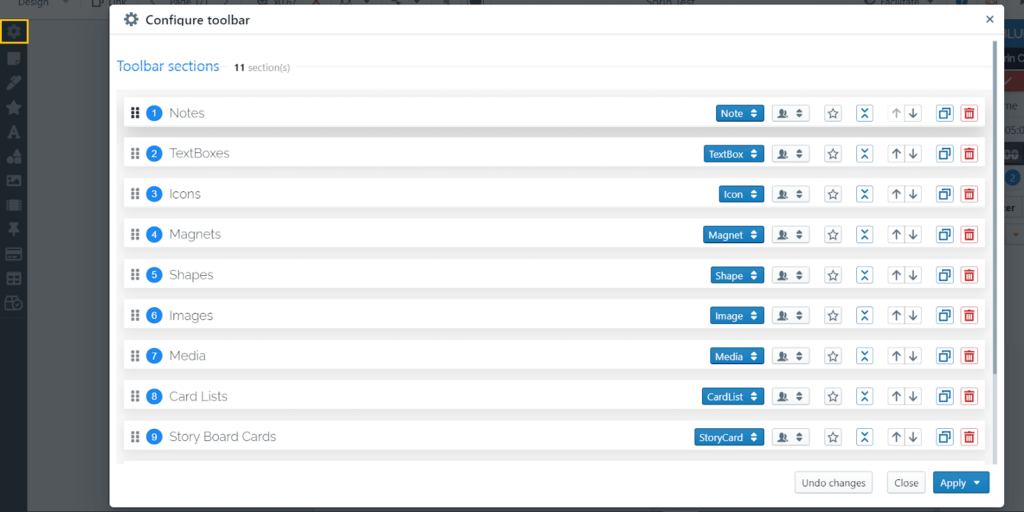
On this page, you can do the following:
Change the order in which the objects will appear at startup. To do this, drag the items up and down the list from the dotted button at the beginning of each row

Edit the section name by typing it in the respective field. For example, you may want the Notes object to be called “Creative Notes”

Select the section type by choosing it from the drop-down list

Section access: you can decide who can access this object while running the activity.

Set a specific flipchart object to open at startup

Collapse or expand the section in the toolbar

Move up / Move down a section by a position within the list.

Duplicate the section

Delete a section

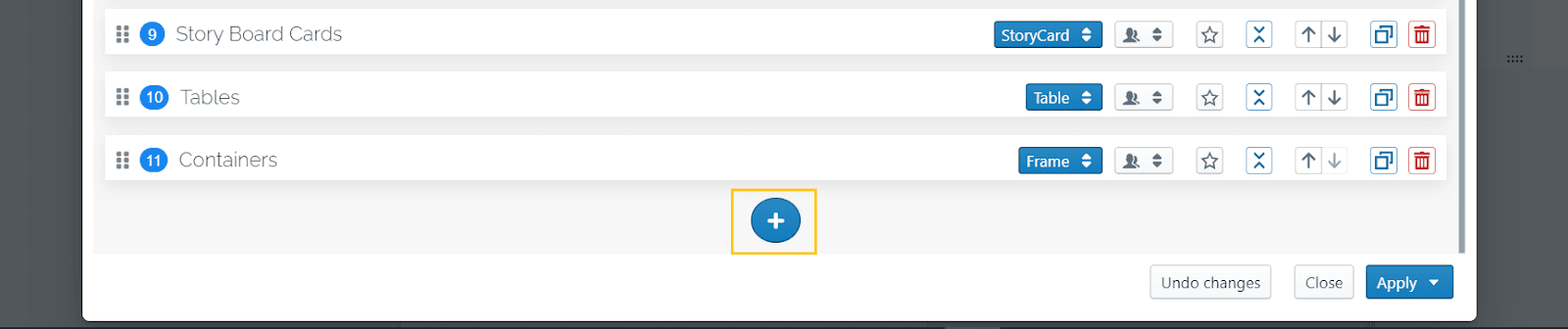
You can add as many sections as you want by clicking on the blue “+” button at the bottom of the list.
Then you can undo changes, or you can apply changes to the room or only to the current team.
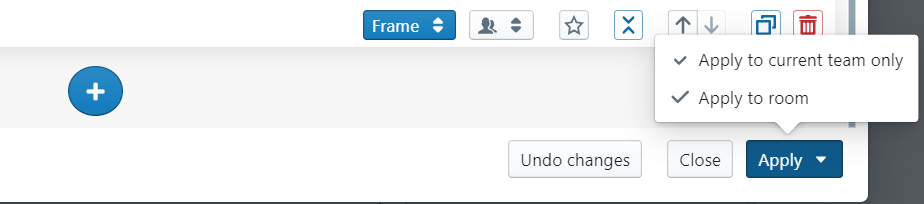
Note: these changes will be temporarily applied for the duration of the activity. Once you restart the training activity, it will start with the initial configuration. To make it permanent, use “Save activity” from the drop-down list of the Design button.