
Master Activities
Experiential learning is a type of learning that involves experience and reflection.
To be effective, experiential learning should use a variety of training activities.
These activities should be designed to provide participants with opportunities to learn new skills and knowledge and to practice these skills in a safe and supportive environment.
Colltrain activities are developed using four apps also known as Master Activities.
Flipchart app
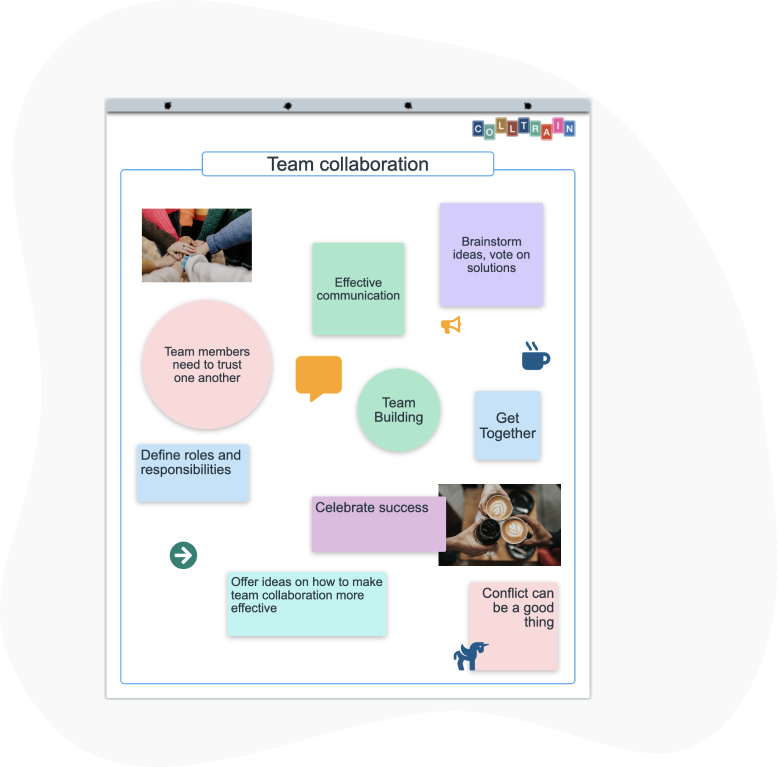
Section titled “Flipchart app”A virtual recreation of the classical flipchart. You can create pages, create a heading, and use a page holder.
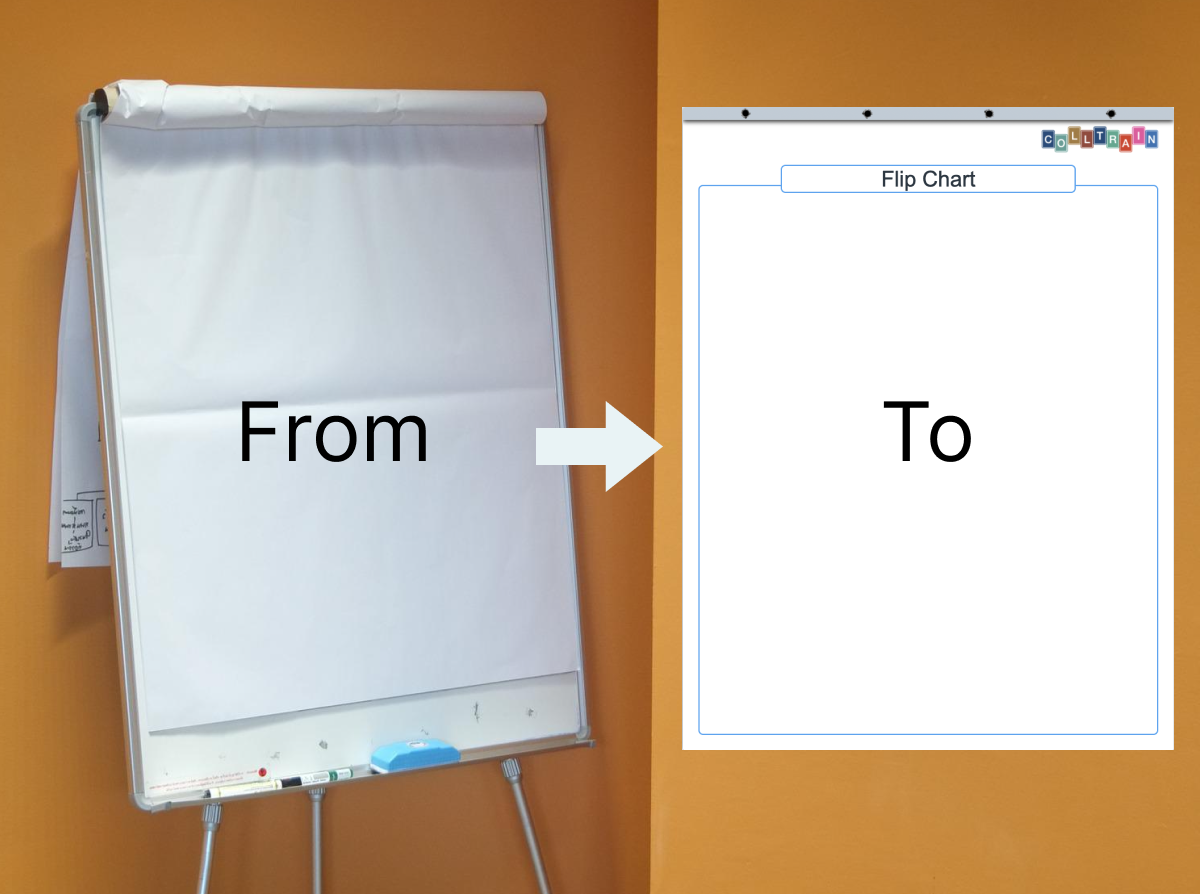
Flipchart works as a finite board so your participants won’t get lost.
Magic Letters
Section titled “Magic Letters”A Colltrain app that allows you to create activities that use alphabet letters with a custom board background.
This app offers you the flexibility to configure your game sets where you can decide at design time the number of sets, colors, and distribution logic on the board.
You can choose from several alphabets or combine them: English, French, Romanian, Hungarian, and Bulgarian. Others can be implemented free of charge, just contact support.
With a little imagination, you can recreate games like “Scrabble”
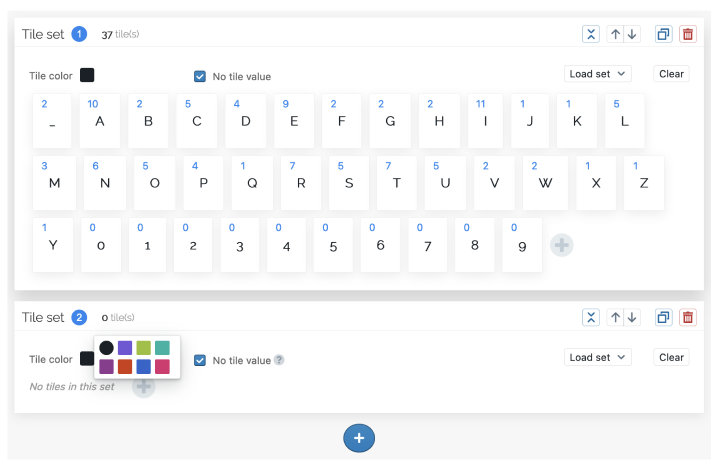
Examples of the most popular activities built with Magic Letters: our Letters, Aeroplane Factory Challenge, Transeo, Recap activities
Playing Cards
Section titled “Playing Cards”A Colltrain app that allows you to create activities that use playing cards sets.
You have the possibility to decide the number of sets, back colour, and missing cards to add a little bit of mystery.
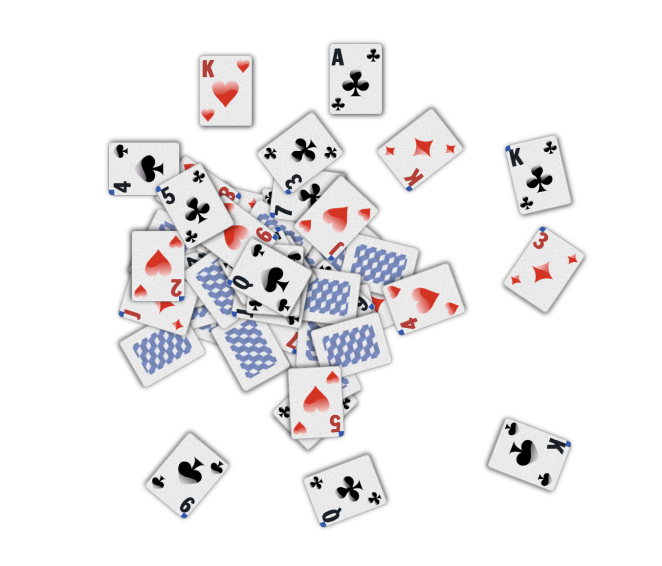
Example of the popular activities built with Playing Cards: Flip-A-Card for Agile
Magic Colours
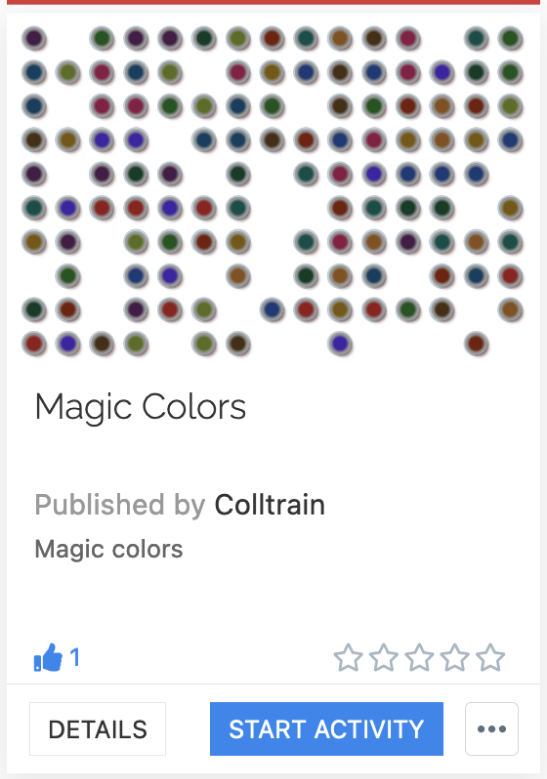
Section titled “Magic Colours”A Colltrain that allows the creation of group competition activities inspired by the whack-a-mole game, in which the participants compete by shooting colourful balloons.
Design new activities
Section titled “Design new activities”You can create designs from Library and Launchpad by accessing the “+NewDesign” button on the right side of the Filter area.
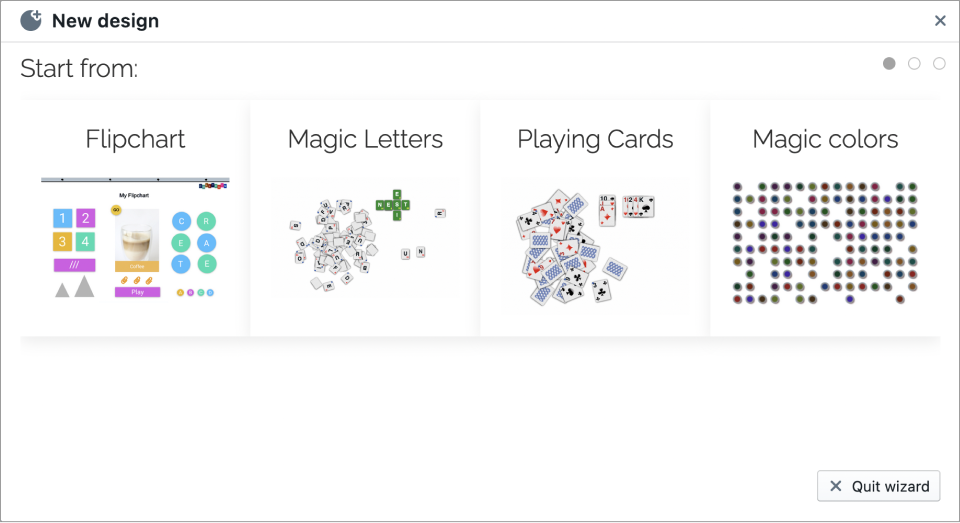
Once you choose your master activity a wizard will start to help you advance with the new design. All new designs are stored in Library and you can make them accessible in Launchpad.