Flipchart Object – Shapes
Hint: You can use shapes to improve the graphic appearance of the activity. Save time by customizing the shape’s attributes.
Prerequisites
Section titled “Prerequisites”A flipchart-based activity started
How to use the shapes with a flipchart
Section titled “How to use the shapes with a flipchart”To use shapes, click on the „Shape“ icon in the toolbar on the left of the screen. A secondary panel will emerge to the right.
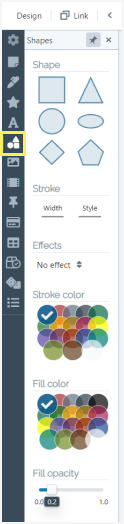
You can customize the shape from the start by editing the visual options found in the secondary panel. The last step is to choose the shape from the series of 6 (at the top of the panel).
Stroke width
Section titled “Stroke width”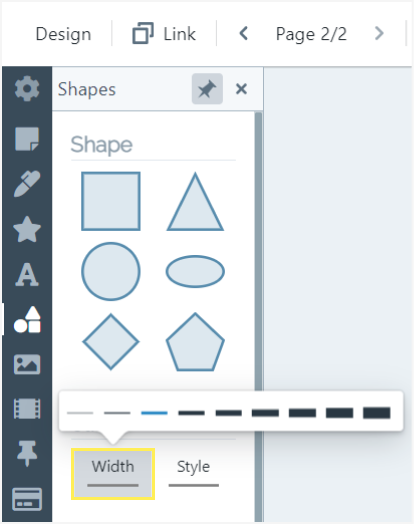
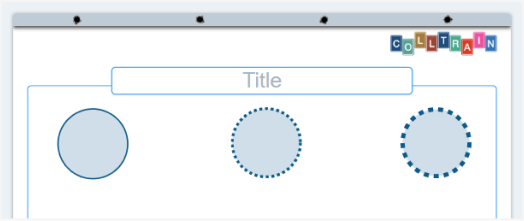
Stroke dash style
Section titled “Stroke dash style”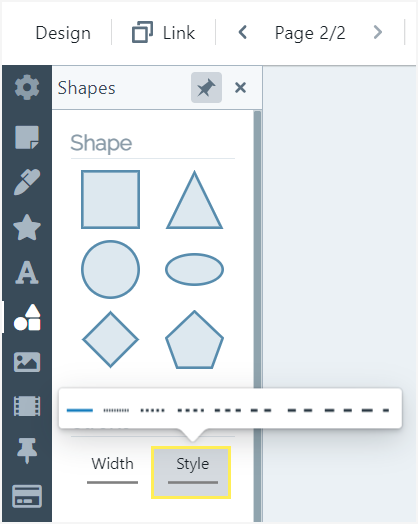
This is how different types of the stroke look like:
Effects
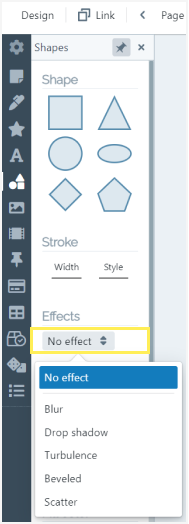
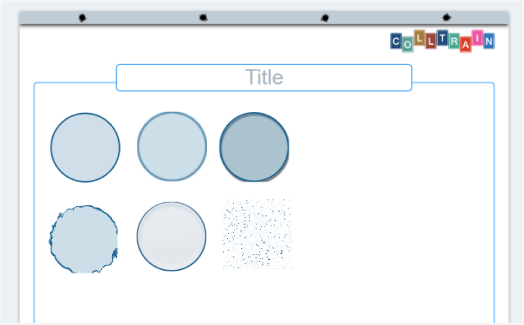
Section titled “Effects”You can use the shape as is or apply one of the 5 effects that create artistic visuals, quite different from the classic geometrical shapes.
See the result of various effects applied to shape
Modify an existing shape
Section titled “Modify an existing shape”- Stroke colour: choose a colour from the chart by clicking on it
- Fill colour: you can select the same colour or a different one to fill the shape
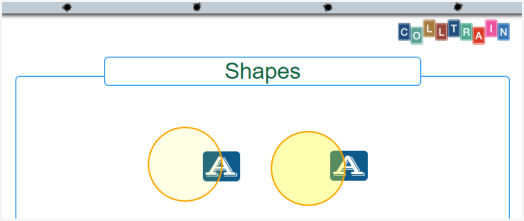
- Fill opacity: set the opacity you need for example to allow you to overlay the shape on top of another object
You can also click directly on the shape you need and edit it later on while on the flipchart page, using the object toolbar.
To add a shape to the flipchart click on it in the secondary panel or use Drag & Drop to place it in a specific part of the page.
While on the flipchart, you can edit the shape using the object toolbar that appears on top of the shape.
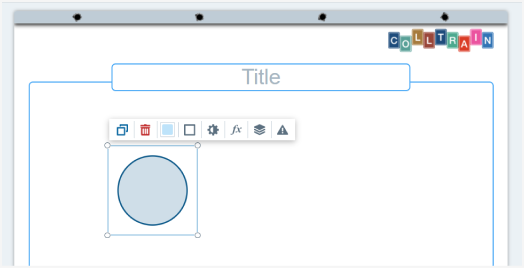
You can do the following:
- Duplicate element
- Delete element
- Change the background colour
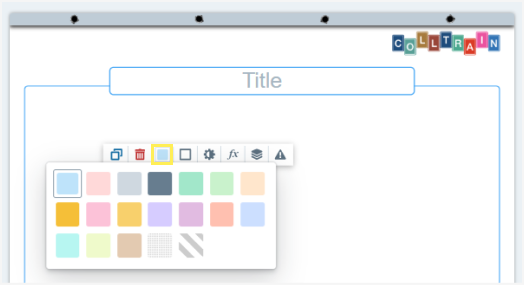
Change stroke options like…
Section titled “Change stroke options like…”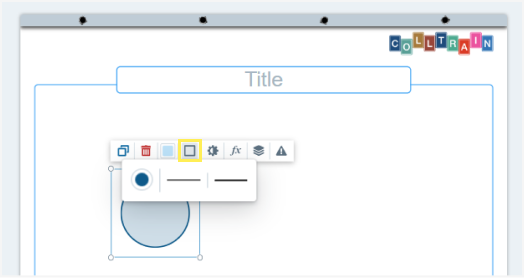
Change the colour
Section titled “Change the colour”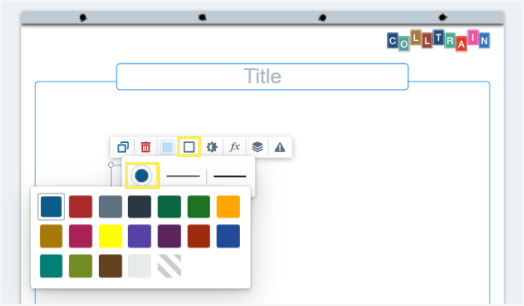
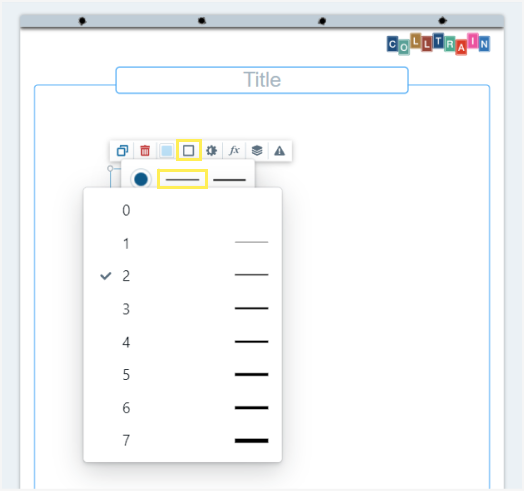
Dash style
Section titled “Dash style”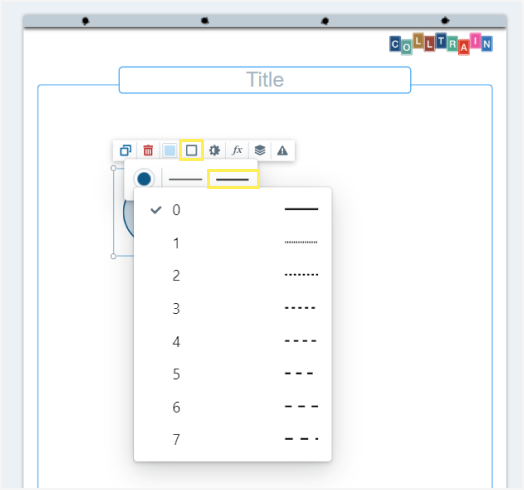
Opacity
Section titled “Opacity”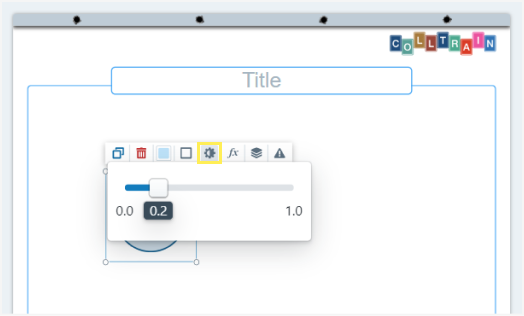
Shape effects
Section titled “Shape effects”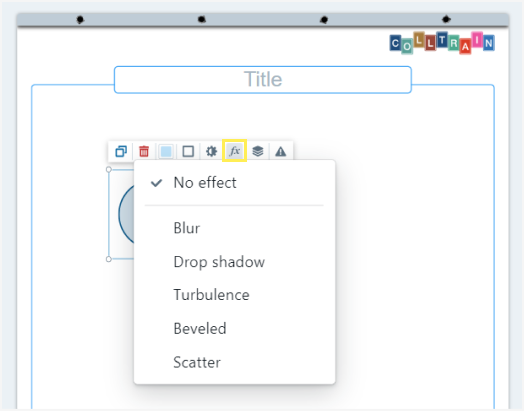
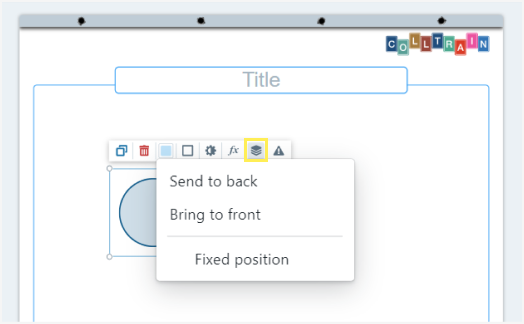
Layers
Section titled “Layers”Send the shape to front/back or opt for a fixed position
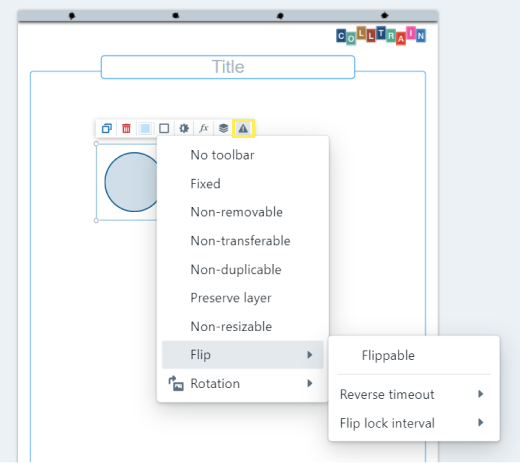
Element behaviours
Section titled “Element behaviours”(see „Object behaviours“ section)
Resize
Section titled “Resize”You can also resize the shape by pulling from any corner. It can go really big, covering the entire flipchart.

Task for you: start an activity and experiment with shapes to create different visual structures that complement the text input.