
Customize Flipchart Pages
Once a flipchart is created, there are several ways you can personalize the aspect of it:
Customize the title
Section titled “Customize the title”Check the three ways to change it.
The title box at the top of the flipchart comes with a few editing options:
- Title edit – Click the title box to change the text
- Font colour – Move the cursor over the title box. You have here 6 choices of colour to choose from
- Size of the title box – Move the cursor over the title box and click on the “+” to enlarge the box or on “-” to shrink it.
- Size and alignment of the text – Click on the little arrow at the right of the box
These options are available when the design mode is enabled. See below (Toolbar buttons section), how to enable/disable it.

Customize page aspect
Section titled “Customize page aspect”Click on the “Page” button in the toolbar to access a dedicated page editing menu.
From here, you can manage all page-related edits for example duplicate the page, create a new page in the same activity, or rename the current page.
See more on this topic in “Page management”.
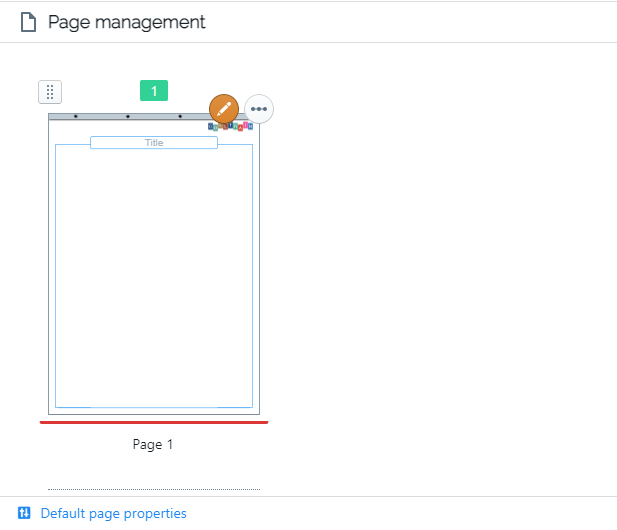
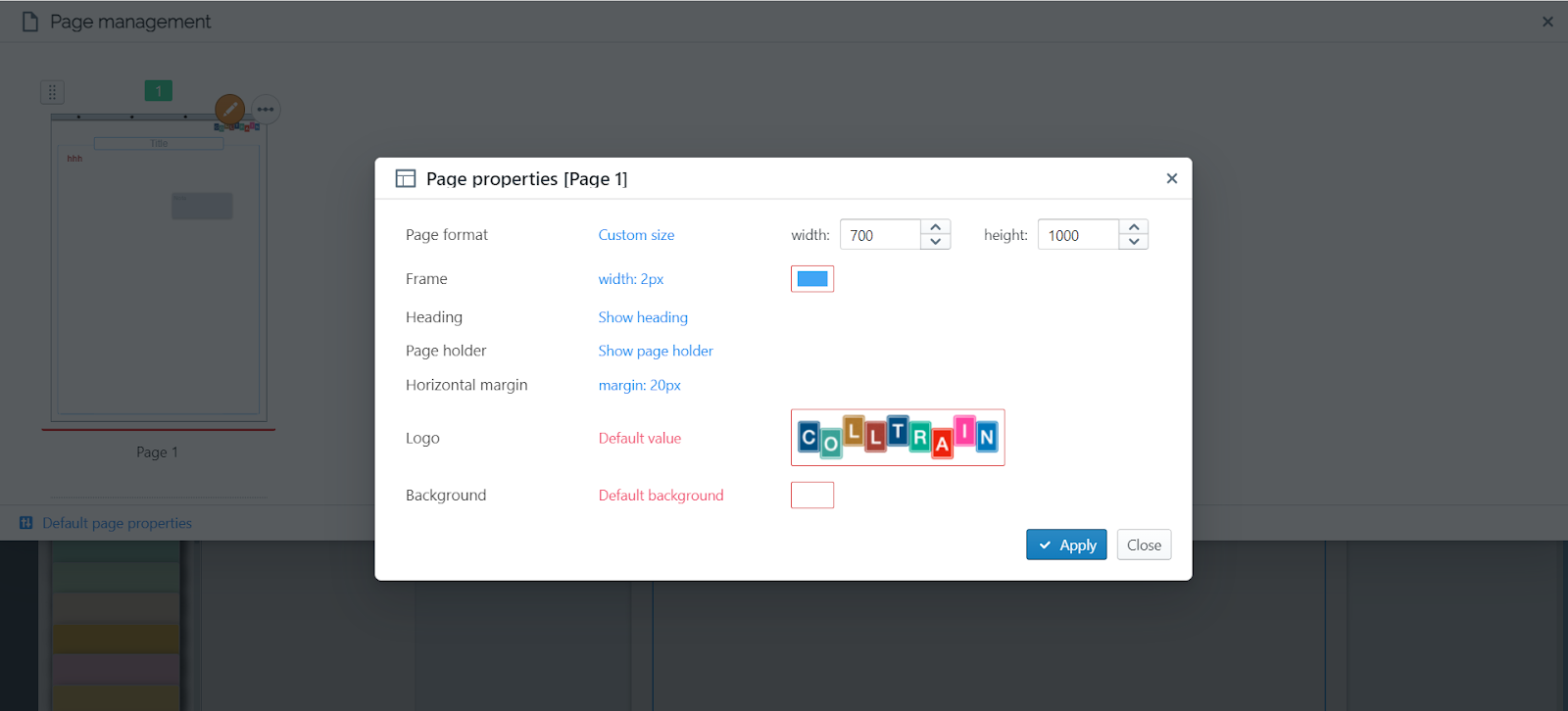
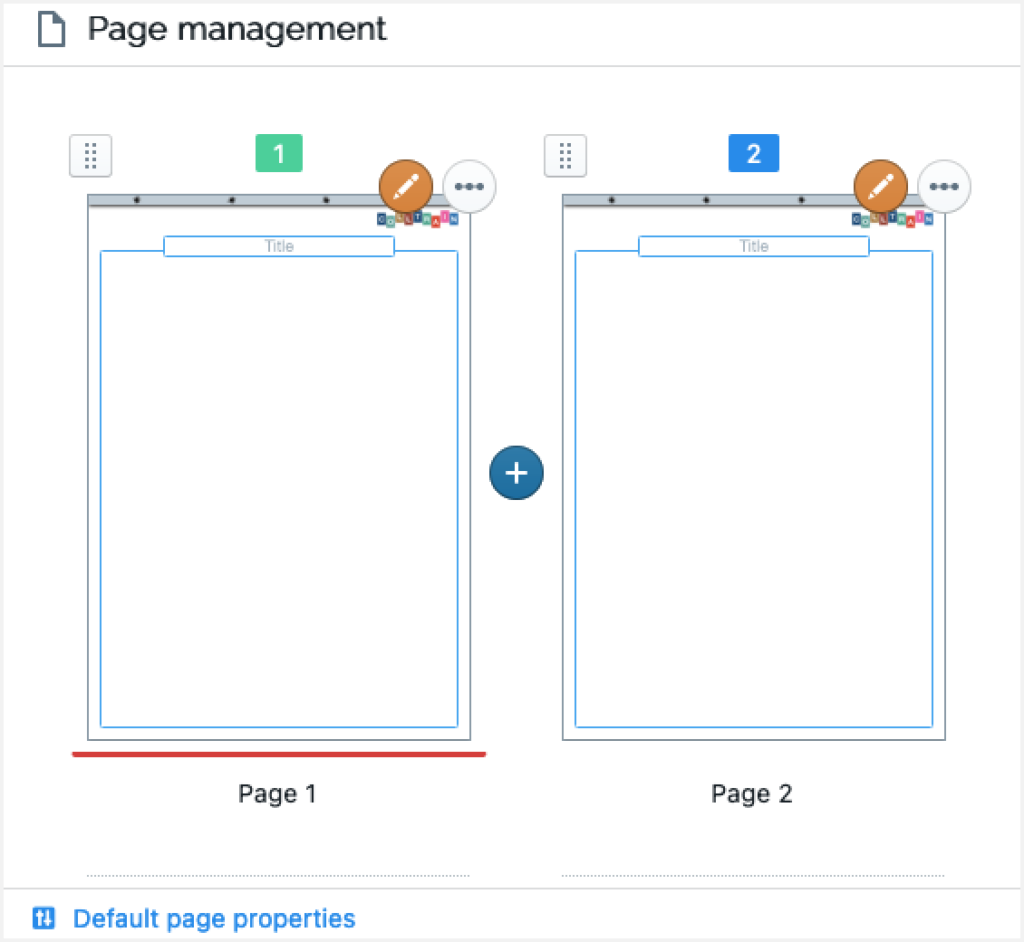
If you are looking for more advanced properties to customize, click on the pencil icon you see in the top right corner of the pages displayed here, and you will find a set of properties that can be customized:
- Page format – width, height, style (portrait/landscape); to adjust the flipchart page’s dimensions, you can also pull from the sides (right and bottom) while in the workspace
- Frame width and colour
- Page holder – displayed or hidden
- Horizontal margin width
- Logo – displayed or hidden; you can display your own branding as per your Colltrain plan
- Background colour
You can reset these settings with just one click on the “Default page properties” button, displayed in the bottom left corner of the menu.
Add more pages
Section titled “Add more pages”To add more pages:
Click on the top menu
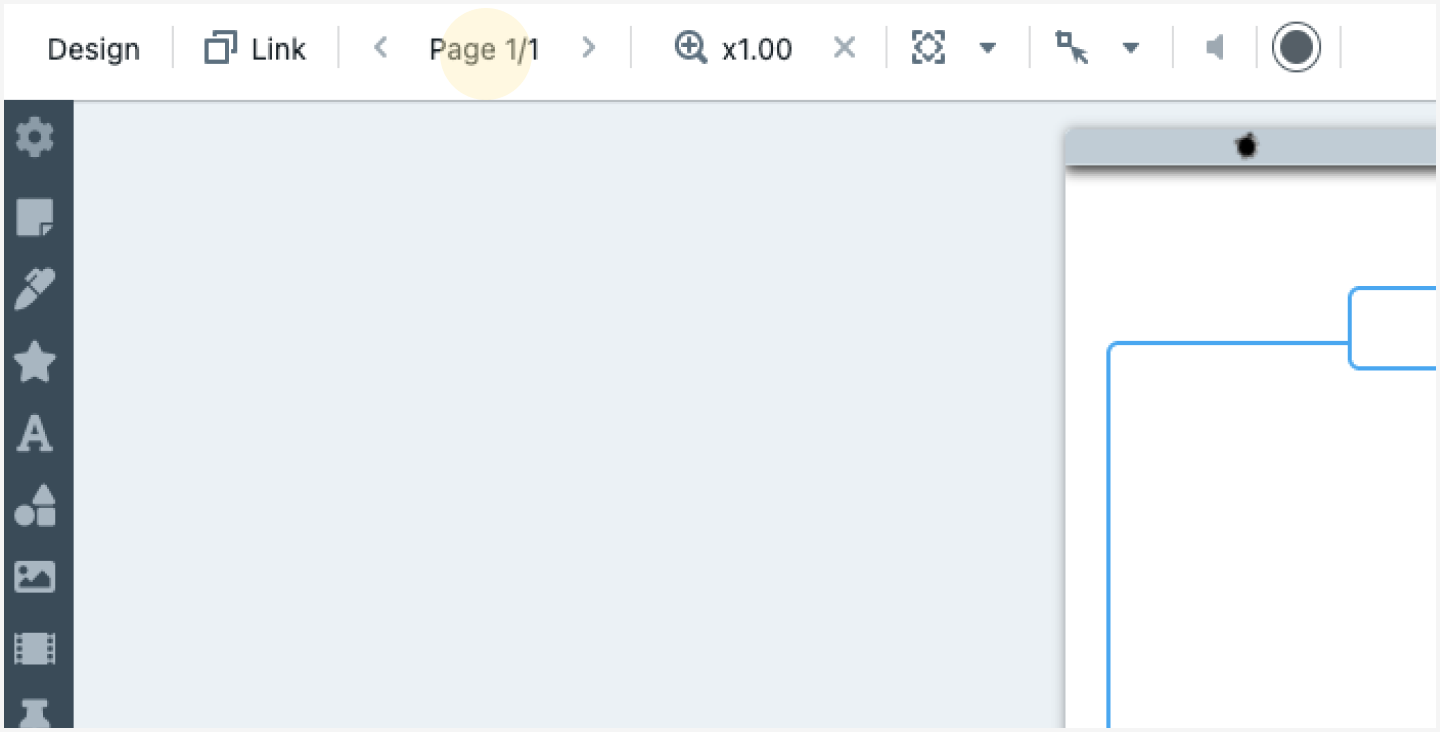
On the page panel, go with the mouse pointer over the middle right region of the page.
Once the blue button with a “+” sign is clicked you can see the new page.
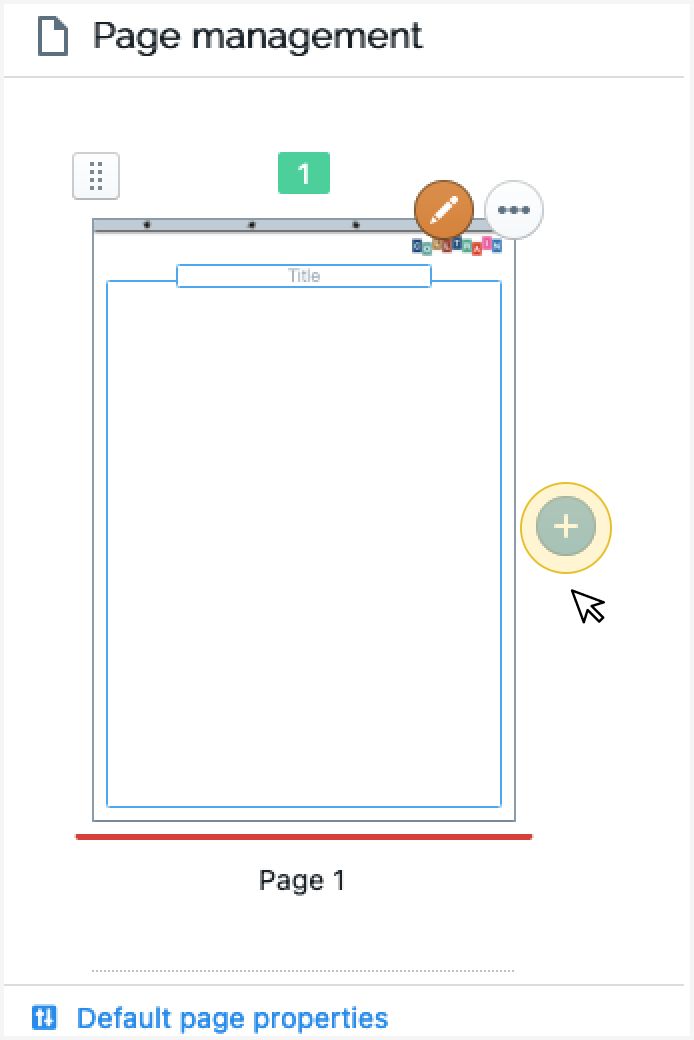
After clicking the button you should be able to see the new page
Double click the new page to go back to the activity.
For more details look at “Page Management”